
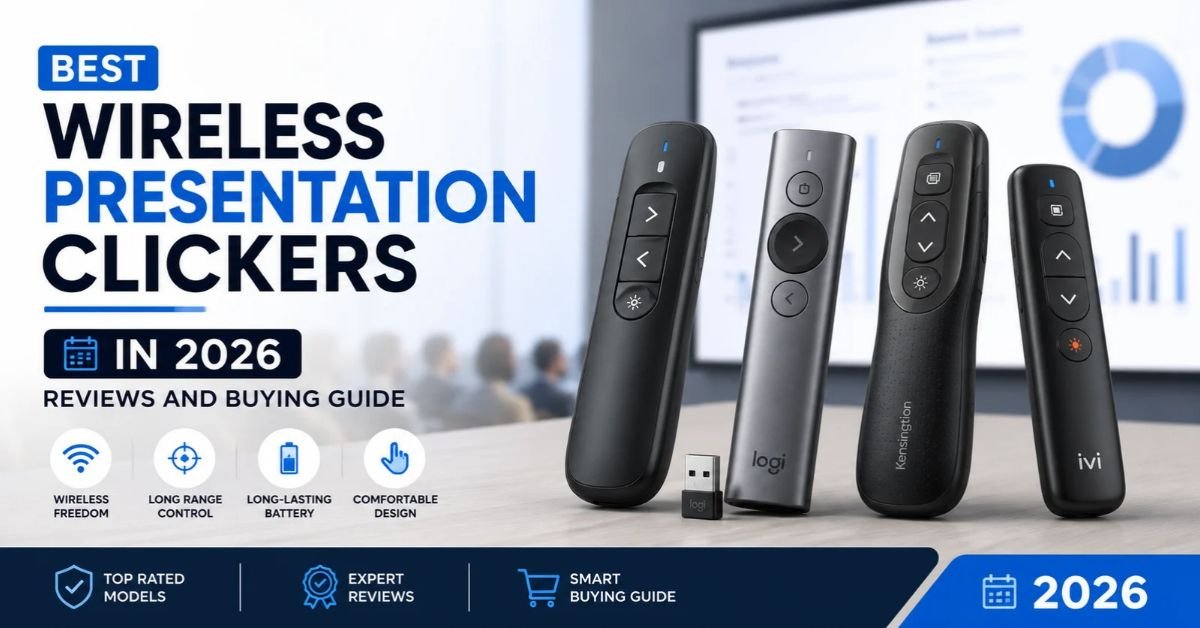
Best Wireless Presentation Clickers in 2026 Reviews and Buying Guide
A dead battery can ruin a great talk. One tiny gadget decides how calm you feel on stage. This guide covers the best wireless presentation clickers for 2026, with ten honest reviews and plain buying advice.
You will find a quick comparison table, product reviews, setup tips, and fixes for common problems. Best Wireless Presentation Clickers Whether you teach, sell, or speak at conferences, you’ll find the best presentation remotes in 2026 for your needs. Some links may earn a small commission at no cost to you.
Best Presentation Remotes at a Glance
Short on time? Start here. The best presentation clicker depends on your room, your laptop, and your budget. The table below shows each pick with its top strength.
Each label shows what the remote does best. Range appears in feet with meters in brackets. Read the full reviews below before you buy.
| Remote | Best For | Range | Power |
| Logitech R500s wireless presenter | Editor’s Choice | 65 ft (20 m) | AAA |
| Kensington wireless presenter K33374EUB | Best Overall | 65 ft (20 m) | Rechargeable |
| Logitech Spotlight presentation remote | Premium Choice | 100 ft (30 m) | Rechargeable |
| ELISWEEN wireless presenter | Best Budget | 100 ft (30 m) | Not stated |
| Kensington K72426AM | Mouse mode | 150 ft (45 m) | 2 AAA |
| Logitech R800 presentation clicker | Best timer | 100 ft (30 m) | Not stated |
| NORWII N27 presentation remote | Big venues | 330 ft (100 m) | Not stated |
| BYEASY PPT clicker | PowerPoint use | 100 ft (30 m) | 2 AAA |
| DinoFire RCRF-011 | Compatibility | Not confirmed | Rechargeable |
| DinoFire presentation clicker | Finger ring | Not confirmed | Rechargeable |
How We Evaluated the Best Presentation Clickers
Testing started with real rooms. Boardrooms, classrooms, and long sessions all shaped the scores. Each wireless presentation remote faced the same questions. Does it connect fast? Does it stay connected? Does it feel good after an hour?
Seven factors mattered most: wireless range and connectivity, compatibility, battery, pointer visibility, comfort, extra features, and price. Some details, such as ELISWEEN’s battery life, remain unconfirmed. Those gaps are marked honestly. A good review should say what it doesn’t know.
Top 10 Best Presentation Remotes in 2026
The market is crowded. Hundreds of slideshow control devices compete for your money. This list sorts the strongest ten by use case instead of price alone.
Every review follows one pattern. You get the key specs, the strengths, the weak spots, and the ideal buyer. That keeps each comparison fair and easy to scan.
Logitech Spotlight Presentation Remote Review
The Logitech Spotlight presentation remote is a premium professional presentation remote. It uses digital highlighting and magnification instead of a laser. It has a rechargeable presentation clicker battery and reaches about 100 ft (30 m). Best Wireless Presentation Clickers A vibration alert warns you five minutes before time ends. You need the Logitech app, but that makes it more precise. It suits professional keynote presentation equipment needs.
Logitech R800 Presentation Remote Review
The Logitech R800 presentation clicker is the timer champion. Its LCD screen shows the clock. The remote vibrates at five and two minutes left. The green laser is strong enough for LCD screens. Range reaches 100 ft (30 m). It works easily on Windows. Mac users need extra effort. The laser also drains the battery faster.
Logitech R500s Laser Presentation Remote Review
This is a simple presentation clicker with laser pointer. It has only three buttons, so accidental presses are rare. The red laser works best on a projector screen. Range is 65 ft (20 m). Battery life reaches about twelve months. It uses AAA cells, so keep spares handy. The soft grip is comfy.
Kensington K33374EUB Wireless Presenter Review
The Kensington wireless presenter is built for comfort. Curves fit your palm well. Four buttons handle the basics. The 2.4 GHz USB wireless presentation remote reaches 65 ft (20 m). The receiver stores in the base, so you won’t lose it. Setup is plug-and-play wireless connectivity. Features are few, but reliability earns it the Best Overall title.
Kensington K72426AM Wireless Presenter Review
Want more control? This model adds a joystick and a mouse mode. You can click around your screen from across the room. Buttons are backlit for dark halls. A microSD slot sits in the receiver. Range hits 150 ft (45 m) on two AAA batteries. One flaw: the black-screen button may fail on some Windows 10 and Mac setups.
ELISWEEN Wireless Presentation Clicker Review
The ELISWEEN wireless presenter is a budget-friendly presentation remote with real value. Plug in the receiver and start. No software is needed. Buttons cover hyperlinks, volume, window switching, and black screen. Range reaches 100 ft (30 m). The red backlight helps in dim rooms. Battery life is not stated, which is a small concern.
NORWII N27 Wireless Presentation Clicker Review
The NORWII N27 presentation remote is a long-range presentation clicker for large halls. Control reaches about 330 ft (100 m). You can remap keys with free software. A lost receiver is easy to replace. A pen clip adds convenience. The plastic body feels less durable than rivals. Handle it with care.
BYEASY PPT Presentation Clicker Review
This is a solid PowerPoint presentation remote for everyday work. Controls sit on top of the body. It includes page turning, black screen, and volume. Range reaches 100 ft (30 m). It runs on two AAA batteries. A bright light helps you point. Some users find it a bit tricky to hold.
DinoFire RCRF-011 Wireless Presenter Review
The DinoFire RCRF-011 is a rechargeable presentation clicker that works across many systems. It runs on Mac, Windows, Linux, and Android. A full charge takes about one hour. That lasts roughly a week. A low-battery light warns you early. Bluetooth does not work with iPads, so check your device first.
DinoFire Wireless Presenter for PowerPoint and Mac Review
The DinoFire presentation clicker wears like a ring. Your hands stay free. It is a handy presentation remote for Mac users and PC fans alike. Charging takes about an hour. Auto sleep saves power. The odd part is aiming. New users often miss the target spot at first.
Best Presentation Remotes Compared
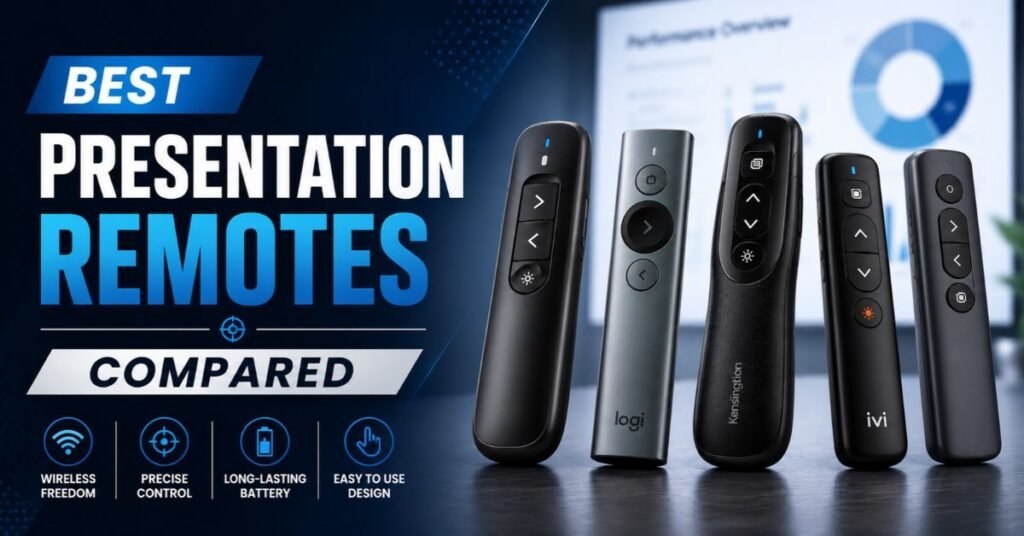
Spec sheets can feel endless. A clear table cuts through the noise. Compare the models side by side before you spend money.
Focus on the columns that matter to you. Teachers may care about price. Speakers may care about wireless signal reliability. Pick two priorities and let them guide you.
Features, Range, Compatibility, and Battery Life
Use this table for quick presentation software compatibility checks. It lists the main facts from the reviews above.
| Remote | Pointer | Range | Systems |
| Logitech Spotlight | Digital highlight | 100 ft (30 m) | Windows, Mac |
| Logitech R800 | Green laser | 100 ft (30 m) | Windows first |
| Logitech R500s | Red laser | 65 ft (20 m) | Windows, Mac |
| Kensington K33374EUB | Not a focus | 65 ft (20 m) | Windows |
| Kensington K72426AM | Green laser | 150 ft (45 m) | Windows, Mac |
| ELISWEEN | Red backlight | 100 ft (30 m) | Windows, Linux, Mac |
| NORWII N27 | Laser | 330 ft (100 m) | Windows, Mac, Linux, Android |
| DinoFire RCRF-011 | Red light | Not confirmed | Mac, Windows, Linux, Android |
Logitech Spotlight vs. Logitech R800
This is the classic Logitech Spotlight vs Logitech R800 debate. Spotlight offers laser-free presentation technology with a highlight and a magnifier. The R800 gives you a green laser and an LCD timer. Spotlight recharges, and it is friendlier to Macs. Pick Spotlight for polish. Pick the R800 if timing is your biggest worry.
Best Presentation Remote for Professional Keynotes
Stage talks demand trust. The Spotlight is the top pick for business presentation technology. Its highlight tool keeps the audience focused. The R500s makes a smart backup. Its three-button design is very hard to fumble. Both belong in a keynote presentation accessories kit.
Best Presentation Clicker for Teachers and Students
A presentation remote for teachers must be simple. ELISWEEN offers easy setup and fair pricing. BYEASY adds volume control for videos. The R500s also suits classroom teaching equipment needs. Here is a quick example. A teacher walks the aisles during a lesson. She advances slides without touching her laptop. Students stay engaged.
Best Presentation Remote for Mac Users
Looking for the best wireless presentation clickers for MacBook? Start with the Spotlight and the R500s. DinoFire models also work well. The R800 needs extra effort on macOS and Windows compatibility. Always check Mac support before buying.
Best Budget-Friendly Presentation Clicker
Want affordable wireless presentation clickers for students? Pick the ELISWEEN first. BYEASY and DinoFire are fine alternatives. Expect fewer advanced features at this price. That’s the trade. For plain slide control, you won’t miss them.
How to Choose the Best Presentation Remote
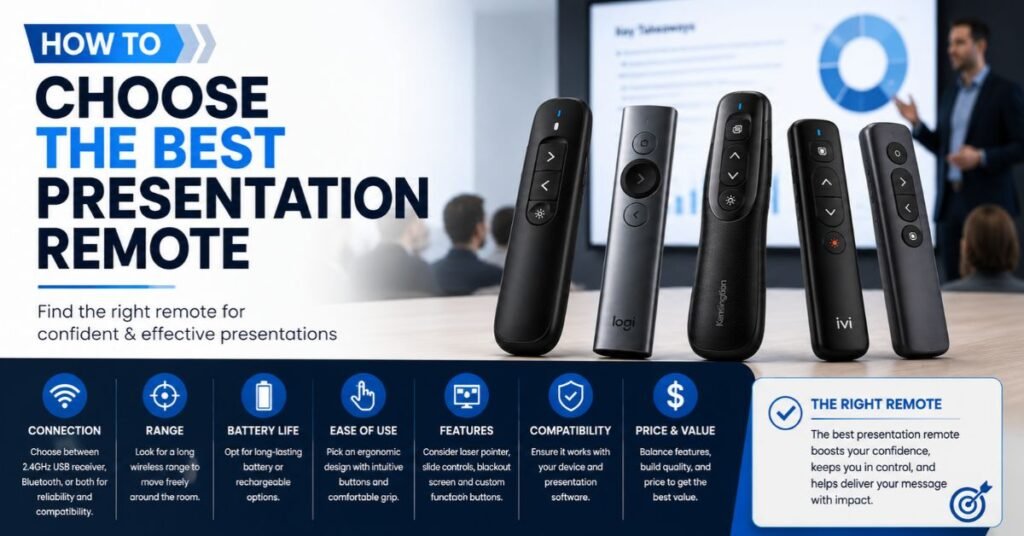
Nobody wants to regret a cheap buy mid-talk. How to choose a wireless presentation clicker comes down to seven checks. Work through them one by one. Your answers will narrow the field fast.
Here is a simple rule. Match the remote to your room and your laptop. Don’t chase the biggest range number. A remote that fits your needs beats a flashy spec every time.
See Also: Thealite Keep Safe Guide Features, Setup, Security, and Privacy Explained 2026
Wireless Range and Connectivity
Brands often boast big numbers. A claim of 100 ft is great for a hall. In a small meeting room, 30 ft is plenty. Walls and doors cut the real distance. Choose a best presentation remote with long wireless range only if your venue is large.
Laser Pointer vs. Digital Highlighting
Lasers are cheap and familiar. Green beams look brighter than red. However, a red laser fades on LCD screens. Laser pointer color and visibility matter on monitors and TVs. Digital pointers solve that problem. They highlight content right on the slide.
Button Layout and Ease of Use
Good presentation remote button layout lets you work by feel. Fewer buttons mean fewer mistakes. More buttons give more power. Backlit keys help in dark rooms. Test the grip if you can.
Compatibility With Windows, Mac, and Other Devices
Most clickers work like a keyboard. That makes them plug-and-play on many systems. Some need an app. Check support for your laptop before ordering. Read the Mac notes with care.
Battery Life and Charging Options
Pick between AAA cells and a best rechargeable wireless presentation remote. Rechargeables save money over time. Spare AAAs save the day in a pinch. Charging ports differ by model, so check the cable type.
Build Quality and Portability
You will carry it everywhere. Light bodies suit portable presentation accessories kits. Soft grips stop slips. Receiver storage prevents loss. A solid ergonomic presentation clicker reduces hand tiredness.
Extra Features Such as Volume and Media Controls
A presenter remote with volume control helps with videos. Timers and vibration alerts keep you on schedule. Mouse modes add flexibility. Hyperlink buttons open links fast. Choose extras you’ll truly use.
How Does a Presentation Remote Work?
Think of the clicker as a tiny keyboard. It sends key presses to your computer. Forward means the next slide. Back means the previous slide. That is why next-slide and previous-slide controls feel instant.
A radio signal carries the command to a small receiver. The receiver sits in your laptop port. Your computer reads it as normal keyboard input. Drivers are rarely needed, which keeps things simple.
How to Connect a Wireless Presenter
Learning how to connect a presentation remote to a laptop takes about a minute. Plug the receiver into your laptop. Do not plug it into the projector. Switch the remote on. Open your slides and press next. Test it before your audience arrives.
USB Receiver vs. Bluetooth Connectivity
A USB receiver works almost everywhere. A Bluetooth presentation clicker frees up your port. Newer laptops often have only USB-C ports. A small adapter fixes that. The Bluetooth pairing process takes a few extra steps. Some models offer a presentation clicker with Bluetooth and USB receiver for both options.
Do Presentation Remotes Make Clicking Sounds?
Yes. Some remotes click loudly like a mouse. In a quiet room, that sound carries. Audiences may notice. Choose a softer model for small meetings.
Are Presentation Remotes Compatible With PowerPoint and Other Apps?
Mostly, yes. A wireless presenter remote control acts like page up and page down. That works in PowerPoint and Keynote. It also works in PDFs. Many models also support Prezi, Word, and Excel.
Some features need software. Highlighting, magnifying, and key remapping rely on an app. Basic PowerPoint slide navigation does not. Check the box before you buy.
Using a Presentation Clicker With Google Slides
Searching for a wireless presentation clicker compatible with Google Slides? Most basic models work. Start the slideshow in full screen mode. Then press next. Laser and highlight features vary by model. A presentation clicker for Google Slides needs no special setup.
Connecting a Presenter Remote to a Mac
Plug in the receiver or pair by Bluetooth. A Mac may ask for permission. Approve it in system settings. After that, the remote behaves normally. Apple users should check Google Slides compatibility and Keynote support too.
Using a Presentation Remote With Smartphones and Tablets
Android devices often work with an adapter. Some remotes pair directly. iPads can be tricky, and the DinoFire RCRF-011 does not pair with them by Bluetooth. Test before an important event.
See Also: Geometry Learn V3 Explained Features, Safety, and Geometry Learning Guide 2026
Can a Presentation Clicker Control a TV?
Yes, if a laptop drives the TV. The clicker controls the laptop. It is not an infrared remote. It cannot change TV channels. It changes your slides on the screen.
Common Presentation Remote Problems and How to Fix Them
It worked yesterday. Now it won’t respond. Don’t panic. Most problems have quick fixes. Good presentation remote troubleshooting starts with the basics.
Run a thirty-second check before every talk. Test the battery. Seat the receiver firmly. Press next and back once. This habit prevents most stage surprises.
Presentation Clicker Not Connecting
Searching for how to fix a wireless presentation clicker that is not working? Unplug the receiver and plug it back in. Try another port. Re-pair a Bluetooth model. Move away from busy Wi-Fi routers. Check USB receiver compatibility if the problem persists.
Remote Buttons Not Advancing Slides
Click inside the slideshow window first. The app must have focus. Close other programs that grab keys. Check whether software changed the button mapping. Restart the slideshow if needed.
Laser Pointer Not Working
Weak batteries are the usual cause. Replace them first. Hold the laser button firmly. Remember that red beams fade on bright screens. Green lasers last longer under glare.
See Also: Stay Updated Always TXEPC 2026 Best Guide to the Latest Updates
Wireless Range and Battery Problems
Walls and metal shorten the signal. Move closer to test. Low batteries also cut range. Heavy laser use drains power fast. Review battery life and charging options and carry a spare set.
Frequently Asked Questions
What Is a Presentation Remote?
A presentation remote is a handheld wireless slide advancer. It controls your slides from a distance. A transmitter in your hand talks to a receiver in your laptop. Many also include a pointer.
What Should I Look for in a Presentation Clicker?
Check range, compatibility, battery, pointer type, and comfort. Think about your room size. Think about your laptop. Then add extras like timers or volume keys.
How Far Can a Wireless Presentation Remote Reach?
Range ranges from 65 ft (20 m) to about 330 ft (100 m) on the models reviewed here. Real range is shorter indoors. Walls and doors cut the signal.
How Long Does a Presentation Remote Battery Last?
It depends on the model and your habits. The R500s promises about twelve months. Rechargeable DinoFire models last about a week per charge. Laser use drains batteries faster.
Do Presentation Remotes Work With MacBooks?
Most do. The Spotlight, R500s, and DinoFire models are good Mac choices. The R800 needs extra effort. Always confirm Mac support first.
Do All Presentation Clickers Have Laser Pointers?
No. The Spotlight uses digital highlighting instead. The Kensington K33374EUB focuses on slide control. Choose a presentation remote with digital pointer features if laser visibility is a problem.
Can I Use a Presentation Remote With Google Slides?
Yes. Start the slideshow in full screen. Press next and back as usual. Basic models work without software.
Final Thought
The right clicker makes you look calm and prepared. For premium polish, pick the Logitech Spotlight. For simple reliability, choose the R500s. For tight budgets, go with the ELISWEEN. Each one earns its place among the best wireless presentation clickers this year.
Choose one that fits your room. Test it before show time. Pack spare batteries or a charging cable. Then walk on stage with confidence.