Host Gimkit Complete Guide to Creating and Hosting a Game in 2026
Picture a quiet review session. Students stare at worksheets. Then you flip the switch. Suddenly the room buzzes as they race to earn virtual cash. That’s the magic of Gimkit. You can host Gimkit in just a few minutes. You don’t need coding skills. You only need a few good questions.
This Gimkit hosting guide for teachers in 2026 walks you through everything. You’ll see how to host a Gimkit game from start to finish. You’ll learn how to build a kit, share a code, and read your results. You’ll also find quick fixes for common problems. Ready to turn review time into a live classroom competition? Let’s go.
What Is Gimkit and How Does Game Hosting Work?
Gimkit is a gamified learning platform built around quiz questions. A high school student created it in 2017. Students answer questions and earn virtual money. They then spend that money on upgrades. It feels like a game show. It works like interactive question-based learning. That mix is why so many Gimkit classroom games become instant favorites.
Gimkit hosting is simple. The Gimkit game host is usually the teacher. The host picks a question set, chooses a mode, and shares a code. Students join on their own devices. Then the Gimkit live game begins. The host watches the action on the Gimkit host dashboard. This makes Gimkit a flexible educational quiz platform for any subject. It also works for Gimkit online learning and remote learning activities.
How to Create a Gimkit Account
Every host needs a Gimkit teacher account. Signing up is free. Go to the Gimkit website and choose the sign-up option. You can use Google or a regular email address. During setup, pick the educator role. Don’t pick the student role. This choice unlocks your dashboard. Your kits, classes, and reports all live there. That’s the whole answer to how to create a Gimkit account.
New educator accounts often start with a short Pro trial. After that, they move to the Gimkit Basic plan. Basic is free and works well for most teacher-led learning activities. Students are even easier. Can students join Gimkit without an account? Yes. They only need a code. That makes how to host Gimkit without a student account a breeze. Just note one limit. According to Designbeep’s host guide, games hosted from student logins cap at five players.
How to Create Your First Gimkit Kit
A kit is your set of questions. Think of it as the heart of your Gimkit question sets. Good Gimkit kit creation takes a little planning. Match your questions to your lesson. Keep the wording clear. Confusing questions test reading skills instead of the subject. That’s why how to make your own Gimkit kit starts with a clear goal.
Start small. A short kit is easier to manage than a huge one. Your kit saves to your account. You can reuse it anytime. This makes Gimkit great for student knowledge assessment across many topics. Below, you’ll find three simple stages for building your first kit.
Choose a Subject and Add Questions
Pick one topic your students already know a bit. Then add your questions one by one. You can type each question and mark the correct answer. You can also add wrong answers that look believable. Aim for ten to fifteen questions in your first kit. Keep each question short and direct. Double-check every answer before you go live. A single wrong key can confuse the whole class. Good Gimkit educational games start with accurate content.
Customize Your Kit Settings
Give your kit a clear title and a short description. This helps you find it later. You can reorder questions to build from easy to hard. Pro users can also add images and audio to questions. These extras support educational game customization. Free users can still build strong kits with text alone. Keep it simple at first. You can always polish the kit after your first session.
Save and Preview Your Gimkit Kit
Save your work before you leave the page. Then preview the kit yourself. Click through each question like a student would. Look for typos and unclear wording. Fix anything that feels off. A quick test saves you from awkward moments in front of the class. Once you’re happy, the kit is ready. It will wait in your dashboard until you need it.
How to Host a Gimkit Game Step by Step
Now comes the fun part. Once your kit is ready, you can start a Gimkit game. The whole process has seven steps. Each step takes a minute or two. This step-by-step guide to hosting Gimkit works for first-timers and veterans alike. Follow the order below the first time you host.
Here’s the flow at a glance. It shows how to create a Gimkit session from start to finish.
Dashboard → Pick Kit → Choose Mode → Set Options → Share Code → Students Join → Start
Each step gets its own short explanation below. Take your time with the first game. Speed will come naturally.
Step 1: Open the Gimkit Host Dashboard
Log in and open your dashboard. Find the kit you want to use. Click the Play Live button next to it. This opens the Gimkit host dashboard. It’s your control center for the session. Take a breath here. The next choices shape the whole Gimkit game session. If you’re learning how to host Gimkit for the first time, keep things simple.
Step 2: Select Your Gimkit Kit
Confirm the right kit is loaded. Check the title and the number of questions. Pick a kit that fits your lesson goal. A short kit works best for a five-minute warm-up. A longer kit suits a full review period. If you chose the wrong one, go back and switch. It takes seconds. This step keeps your classroom game management smooth and stress-free.
Step 3: Choose a Gimkit Game Mode
You’ll now see the Mode Picker. This is where you learn how to select a Gimkit game mode. Some modes focus on speed. Others focus on teamwork. Free accounts see a few rotating featured modes. For a first game, pick something your class can grasp in under a minute. If you spend five minutes explaining rules, the mode is too complex. Save fancy options for later.
Step 4: Customize Game Settings
Next, you’ll see the Gimkit game settings screen. You can set a game goal. You can connect a class. You can allow late joining. You can turn on the nickname generator. A quick review works well with a time-based goal. A longer activity may need a different ending. Late joining stays on by default. That helps when students trickle in after the bell.
Step 5: Generate and Share the Gimkit Game Code
Once settings are ready, you land in the lobby. Here you’ll see your Gimkit game code. It’s also called the Gimkit join code. This answers how to get a Gimkit game code. You can show it on a projector. You can also share a direct link. Hover over the code box to reveal a QR code. That’s the easiest way to learn how to share a Gimkit join code with a whole room.
Step 6: Let Students Join the Game
Now students take over. This is how students join a Gimkit game. They open the Gimkit join page at gimkit.com/join. They type the code and pick a nickname. Students in a connected class can join even faster. Glance at the lobby before you start. Remove any silly or unsuitable names. This protects online classroom participation and keeps the mood friendly.
Read More: 17+ Minnesota Vikings vs New York Giants Match Player Stats Complete Game Breakdown
Step 7: Start and Monitor the Live Game
Once most students have joined, hit the green Start button. Remind them to read each question carefully. Then watch the screen as answers roll in. This is how to start a live Gimkit game. In 2D modes, you can join as a player or watch as a spectator. Either way, your prep pays off here. Seeing students race to answer is one of teaching’s best moments.
Popular Gimkit Game Modes Explained
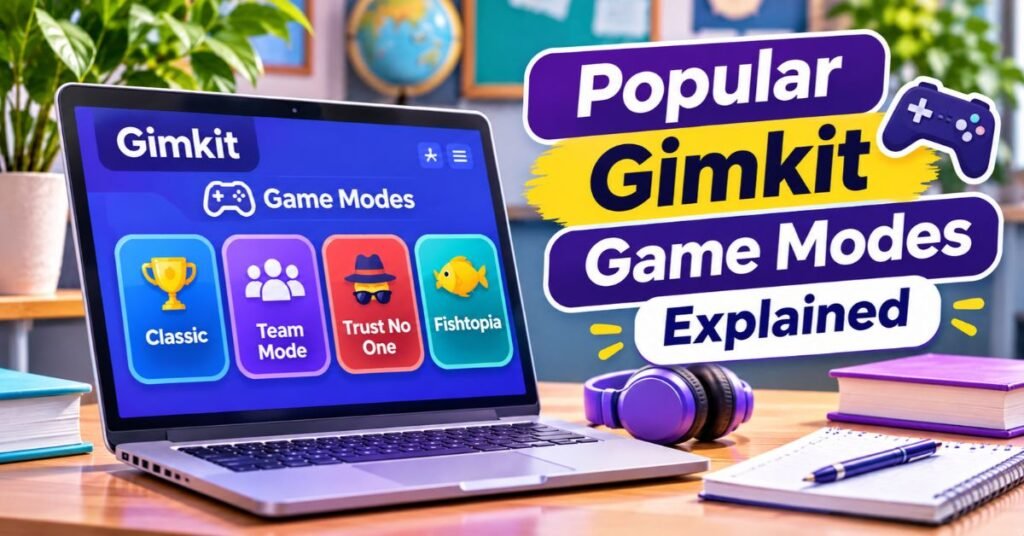
Gimkit offers many Gimkit game modes. Each one creates a different kind of classroom energy. Some are fast and competitive. Others are calm and cooperative. This variety makes Gimkit a strong multiplayer learning games tool. It also supports game-based teaching methods for almost any subject. Remember that modes rotate often. Always check the Mode Picker before you plan a lesson.
The table below groups the main types. It also answers which Gimkit mode is best for teachers. For most beginners, the answer is Gimkit Classic Mode. It’s simple and quick to explain.
| Mode Type | What Students Do | Best For |
| Classic | Answer questions and buy upgrades | First-time hosts and quick reviews |
| Team | Work together toward a shared score | Collaborative student learning |
| 2D action modes | Move on a map while answering | Fun end-of-unit practice |
| Story-style modes | Solve questions inside a plot | Variety and extra excitement |
Classic Mode
Gimkit Classic Mode is where it all began. Students answer questions and earn cash for each correct answer. They then spend the cash on upgrades and power-ups. This creates a fun loop of earning and strategy. The rules are easy to explain. That’s why it’s a top pick for beginners. It also works well as a real-time student assessment tool. You see who understands the material right away.
Team Mode
Gimkit Team Mode puts students on teams. They work together instead of racing alone. Team play builds collaborative student learning and shared responsibility. Quieter students often gain confidence in a team. Strong students learn to explain ideas to others. Team play also softens the pressure of solo competition. It’s a smart choice for mixed-ability classes. Try it once your students know the basics.
Other Available Gimkit Game Modes
Gimkit has many more options. Examples include Snowbrawl, One Way Out, Don’t Look Down, and Fishtopia. Some are action-packed 2D modes. Others ask students to cooperate toward one goal. Pro unlocks the full list. Basic usually shows about three rotating Gimkit game modes at a time, as Perplexity AI Magazine’s host guide explains. Check the player limits before you choose, since they change by mode.
| Limit Type | Player Cap |
| Most live games | Up to 500 players |
| 2D modes | Up to 60 players |
| Basic accounts using Pro-only modes | 5 players |
These numbers answer how many players can join Gimkit. For large classes, pick a non-2D mode.
How to Manage a Live Gimkit Game as a Host
Once the game starts, your role changes. You move from setup to supervision. Good classroom management matters as much as good questions. You’ll watch participation, pace, and any tech hiccups. This is what teacher-controlled game sessions look like in practice. Stay calm and stay curious. A skilled host knows when to step back and when to step in.
Think of yourself as a referee and a coach. You keep things fair. You also keep energy high. If students focus on tricks instead of learning, adjust next time. Balance fun with real student engagement activities. That balance keeps a Gimkit live game valuable. It also answers how to manage students during a Gimkit game.
Monitor Student Progress and Participation
The Gimkit host dashboard shows live scores and answer accuracy. This is how to monitor student progress in real time. Watch for students who seem stuck or silent. Check which questions many students miss. These clues guide your next lesson. Strong Gimkit student participation shows up as steady answers across the room. A quick walk around the class adds extra insight. Combine both views for the best picture.
Control Game Settings During a Session
Some settings stay open while the game runs. Others lock once you start. Controls also vary by mode. Check your host screen for the options available. Late joining is a good example. It stays on by default. You can turn it off if you want a fair start. Keep changes minimal during play. Too many tweaks can confuse students and slow the pace.
Pause, End, or Restart a Game
Host controls vary slightly by mode. Still, you’ll usually find an end-game option on the host screen. That’s how to end a Gimkit session. If you want a second round, you can usually relaunch the kit. This is how to restart a Gimkit game. A new session creates a fresh code. Share the new code with students. Ending early is fine. Sometimes a lesson needs the extra minutes more than the game does.
How to View and Analyze Gimkit Game Results
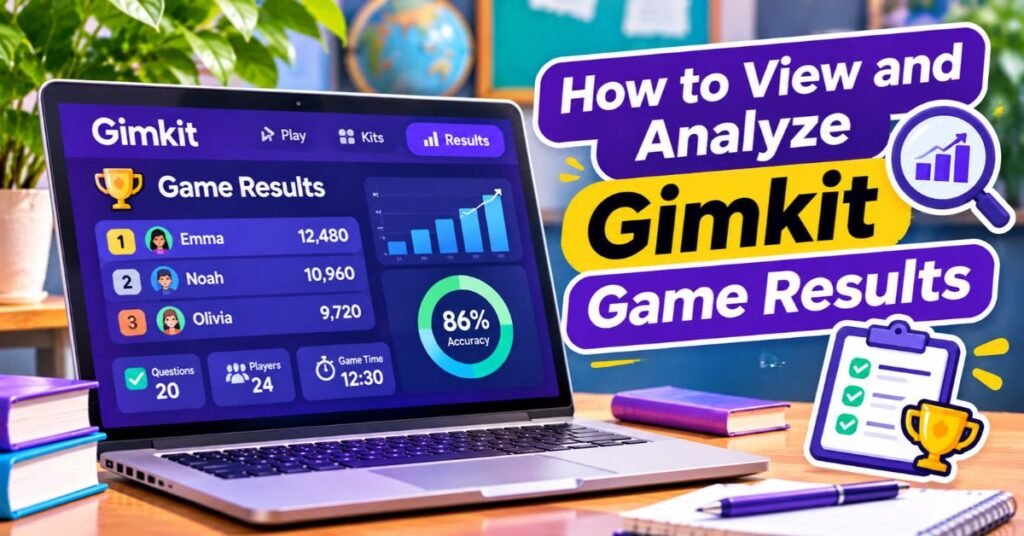
The leaderboard shows who won. The report shows what to teach next. After the game, open your Gimkit game results. This is how to review Gimkit game reports and how to check student scores on Gimkit. Look at the questions many students missed. Those patterns reveal gaps in understanding. You can reteach a topic the next day. Even free accounts get these learning progress reports.
This step turns play into formative assessment tools you can trust. Gimkit becomes more than a fun break. It becomes a source of student performance tracking. Over time, you’ll spot trends across sessions. You’ll see which students improve and which topics need work. Here’s a quick example. Imagine a science teacher who runs a ten-question review. She finds that most students missed question seven. She spends five minutes reteaching it. The next quiz shows clear improvement.
Read More: Silsics com Review 7 Ultimate Facts About Features, Safety & Legitimacy 2026
Gimkit Basic vs. Pro: Features, Pricing, and Differences
Most teachers can start free. The Gimkit Basic plan covers live hosting, classes, and reports. The Gimkit Pro subscription adds more modes and tools. This section helps with Gimkit Basic vs Pro for teachers. The table below shows the main differences. Details can change, so check the official pricing page before you buy.
| Feature | Basic | Pro |
| Host live games | Yes | Yes |
| Class rostering and reports | Yes | Yes |
| Game modes | About three rotating | All modes |
| Assignments for homework | No | Yes |
| Image and audio questions | No | Yes |
| Price | Free | $14.99 per month or $59.88 per year |
Pricing details come from sources like Nibble. School plans exist too. According to MakerStations, a Department plan covers up to 20 teachers at $650 per year. Group plans accept purchase orders. Individual plans need a credit card. If you only run live reviews, Basic is often enough. Upgrade when you want more variety or digital learning tools like Assignments.
Tips for Hosting an Engaging Gimkit Game
Start small. Choose a short kit on a topic your students know. Test the game yourself first. Keep the join code visible the whole time. This saves you from repeating it twenty times. These simple habits make Gimkit classroom activities smoother. They also build your confidence as a host.
Next, match the mode to your goal. Use Classic for quick practice. Use Team Mode to build cooperation. Keep sessions short and lively. A ten-minute game often beats a thirty-minute one. Rotate modes to keep things fresh. Try different classroom engagement strategies over time. Ask students for feedback too. They’ll tell you which modes they love. That feedback helps you plan better Gimkit educational games all year.
Common Gimkit Hosting Problems and How to Fix Them
Even skilled hosts hit small snags. The good news is that most fixes are quick. Gimkit troubleshooting usually takes a minute or two. Stay calm and work through the cause. The table below gives fast answers. Then the H3 sections dig deeper. This also covers how to troubleshoot Gimkit game joining problems.
| Problem | Quick Fix |
| Code not working | Recheck the code and refresh the join page |
| Students can’t join | Share the direct link or QR code |
| Lag or loading trouble | Close extra tabs and test the network |
| Device trouble | Update the browser and keep screens awake |
Most issues come down to typos, networks, or device settings. Check those three first.
Gimkit Game Code Not Working
First, check for typos. Students often mix up similar numbers. Next, confirm the game is still open. An ended session won’t accept the old code. Ask students to refresh the join page. Then try again. If the problem continues, share the direct link instead. You can also show the QR code. Starting a fresh session with a new code usually solves stubborn cases.
Students Unable to Join a Game
Look at the player cap first. A full room blocks new players. Check whether the mode limits players, since 2D modes have a lower cap. Also confirm late joining is on if students arrive after the start. Ask students to try another browser. Check that nicknames aren’t blocked or duplicated. This answers can students join a Gimkit game late. Yes, as long as the late-join setting stays on.
Read More: 81+ Milwaukee Bucks vs Oklahoma City Thunder Match Player Stats Full Box Score & Game Analysis
Game Loading or Connection Issues
Slow school networks can cause lag. This is how to fix Gimkit connection problems. Start by testing your own connection. Ask students to close extra tabs and apps. Reduce the player count if the room is large. Move closer to the Wi-Fi router when possible. If lag persists, switch to a lighter, non-2D mode. Those modes tend to run smoother with big groups.
Problems With Game Settings or Student Devices
Most devices work fine. Does Gimkit work on mobile devices? Yes. It runs in a standard web browser on laptops, Chromebooks, tablets, and phones. Still, outdated browsers can cause trouble. Update the browser if something looks broken. Phones may dim the screen and drop the connection. Ask students to keep screens awake. Double-check your Gimkit game settings too. A wrong setting can look like a bigger bug.
Frequently Asked Questions
What Is a Gimkit Host?
A Gimkit host is the person who runs the live game. It’s usually the teacher. The host picks the kit, chooses the mode, adjusts settings, and shares the code. The host also watches progress during play. You don’t need special skills for this role. You only need a plan and a few good questions. In some 2D modes, hosts can even join the fun as players.
How Do I Create a Gimkit Game Session?
Log in to your dashboard and open your kit. Click Play Live. Pick a mode and adjust the settings. Then share the code with your class. Once students join, press Start. That’s the full flow for how to create a Gimkit session. The first time takes a few minutes. After that, it feels almost automatic.
Do Students Need Accounts to Join Gimkit?
No, they don’t. Students join with just a code and a nickname. This keeps online student quizzes fast and simple. It also helps remote classes. Accounts are mainly for teachers. Students only need accounts for features like homework assignments, which are a Pro feature.
How Many Students Can Join a Live Gimkit Game?
Most live games allow up to 500 players. 2D modes allow up to 60. Basic accounts using Pro-only modes allow five. Real performance depends on your network and devices. For big classes, choose a non-2D mode. This keeps the game smooth for everyone.
Can Students Join Gimkit After a Game Starts?
Yes, if late joining is on. It’s on by default. Students can use the same code or link to enter mid-game. You can turn the setting off for a fair start. Many teachers leave it on. It helps students who arrive a few minutes late.
Can You Use Gimkit for Homework?
Yes. Gimkit offers an Assignments feature for homework. Students play at their own pace over several days. They don’t need a live host. This tool needs a Gimkit Pro subscription, so Basic users stick with live games. Assignments work well for the night before a big test.
What Devices Support Gimkit?
Gimkit works in a web browser. That includes laptops, Chromebooks, tablets, and many phones. Students don’t need to download anything. Make sure the browser is up to date. Test one device before class if you can.
Can You Reuse a Gimkit Kit?
Absolutely. Every kit you build stays saved in your account. You can run it again anytime. Edit it between sessions to keep things fresh. Reusing kits saves prep time. It also lets you track growth across repeated sessions.
What Is the Best Gimkit Mode for Beginners?
Classic Mode is a strong first choice. Its rules are simple and quick to explain. It lets you focus on question quality instead of game mechanics. Once your class feels comfortable, try Team Mode or a 2D action mode for variety.
Final Thoughts
Learning to host Gimkit gets easier with each game. Break it into small steps. Create your account. Build a focused kit. Pick a simple mode. Adjust your settings. Share the join code. Then press Start. After the game, read your results and plan the next lesson. That loop turns Gimkit classroom games into real interactive classroom learning.
You don’t need Pro to begin. The free Basic plan covers hosting, classes, and reports. Start with one short kit and one easy mode. Watch your students light up. Then grow from there. With a little practice, any teacher can run lively, effective game-based teaching methods in 2026. Your next review session could be the most fun one yet.